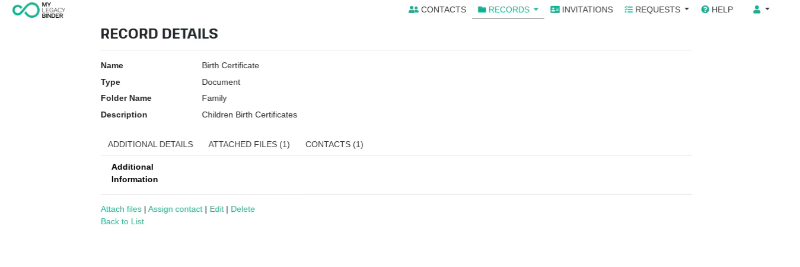
Create a Record
Records are a place where you can save and organize information, documents, and instructions that you can later share with your contacts.
1. Go to the RECORDS section
Once you’ve logged in to My Legacy Binder:
- Go to the top menu.
- Click on RECORDS.
- Select My Records.
In this section, you can view the Records you’ve already created, organize them into folders, search for information, and manage your existing Records.
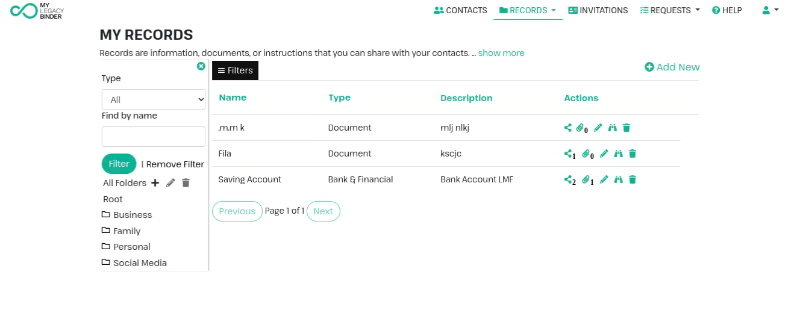
2. Select Add New
In the upper-right corner of My Records, click Add New.
The system will take you to the Add Record screen, where you can begin creating your new Record.
3. Select the Record type
In the Type* field, you’ll find a drop-down menu:
Select Record Type
Select the category that best matches the information you’re going to save.
The Record type allows you to classify and organize the information within your Binder.
Important: The Record type is the first piece of information you must select. Depending on the type you choose, the system may request additional information.

4. Fill in the Record Information
Once you have selected the type, the fields corresponding to that Record will appear.
Fill in the requested information according to the type of information you are entering.
The fields that appear may vary depending on the type of Record selected.
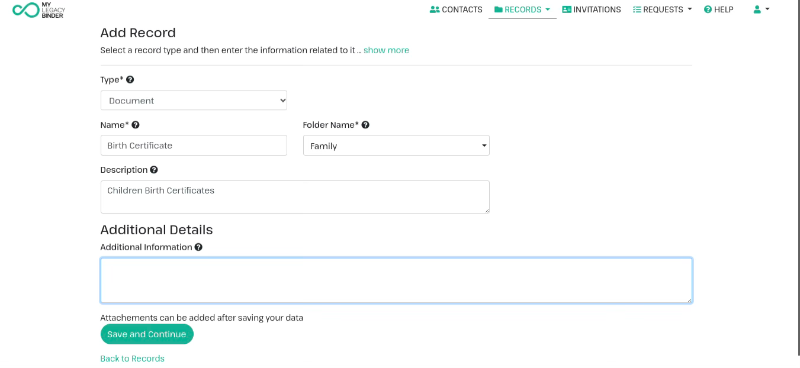
Once you’ve filled in the required information, select “Save and Continue.”
Creating a Record does not mean that the information is automatically shared. After creating and saving the Record, you can specify which contacts will have access and under what circumstances.
What are Folders?
Folders let you organize your Records within your Binder. They function like organizational folders: you can group related information to easily find and manage it.
For example:
- Personal
- Family
- Business
- Social Media
A Folder does not determine who can access a Record or when it is shared. Its sole purpose is to help you organize your information.
Why do Folders appear in two places?
Folders appear in two locations within Records, but they serve different purposes:
In My Records
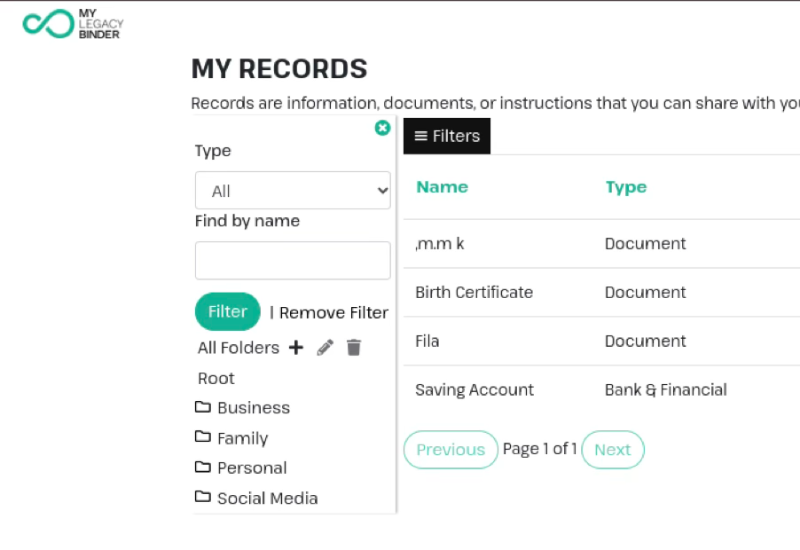
The “Folders” side panel lets you browse and filter your records by folder.
When you select a folder, you’ll be able to view the records organized within that folder.
You’ll also find options to create, edit, or delete folders.
2. When creating or editing a record
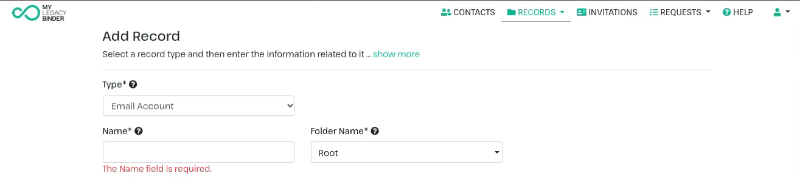
In the “Folder Name” field, select the folder where you want to save that record.
For example:
Record: Email Account
Folder: Root
This way, the record will be organized within the “Root” folder.
Important: Changing a record’s folder does not modify its information, files, contacts, or access permissions. It only changes where it is organized within your binder.
5. Attach files to a record
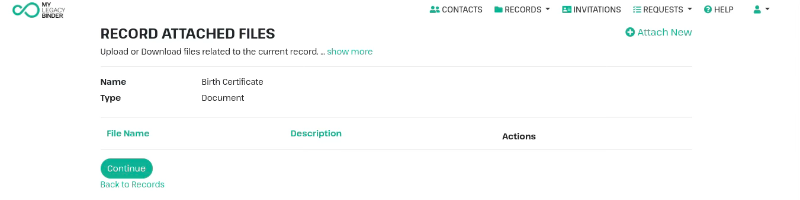
After creating the Record and selecting “Save and Continue,” you’ll be taken to “Record Attached Files.”
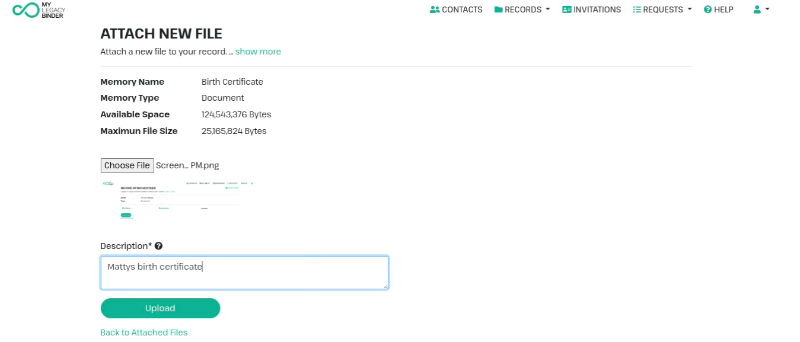
- Click “Attach New.”
- Select the file you want to attach.
- Fill in the requested information.
- Save the file. (Upload)
The file will be associated with the Record, and you can add more files if necessary.
6. Define Who Can Access It
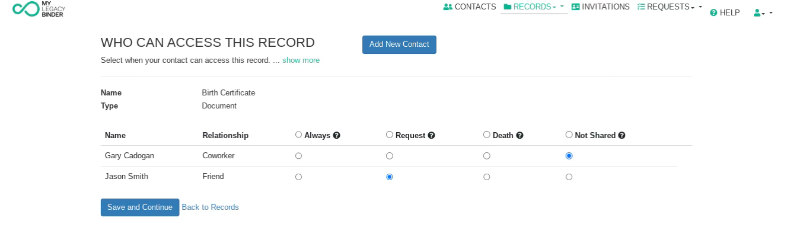
Under “Who Can Access This Record,” you can select which contacts will have access to that Record.
1. Locate the contact in the list.
2. Select one of the available options:
- Always: permanent access.
- Request: access upon request.
- Death: access in the event of death.
- Not Shared: not shared.
3. Repeat the process for each contact.
4. Click “Save and Continue.”
Important: Being the Primary Contact does not mean you automatically have access to all Records. Access is defined for each Record.
The information will be associated with the Record, and you can add more information in the future if necessary.